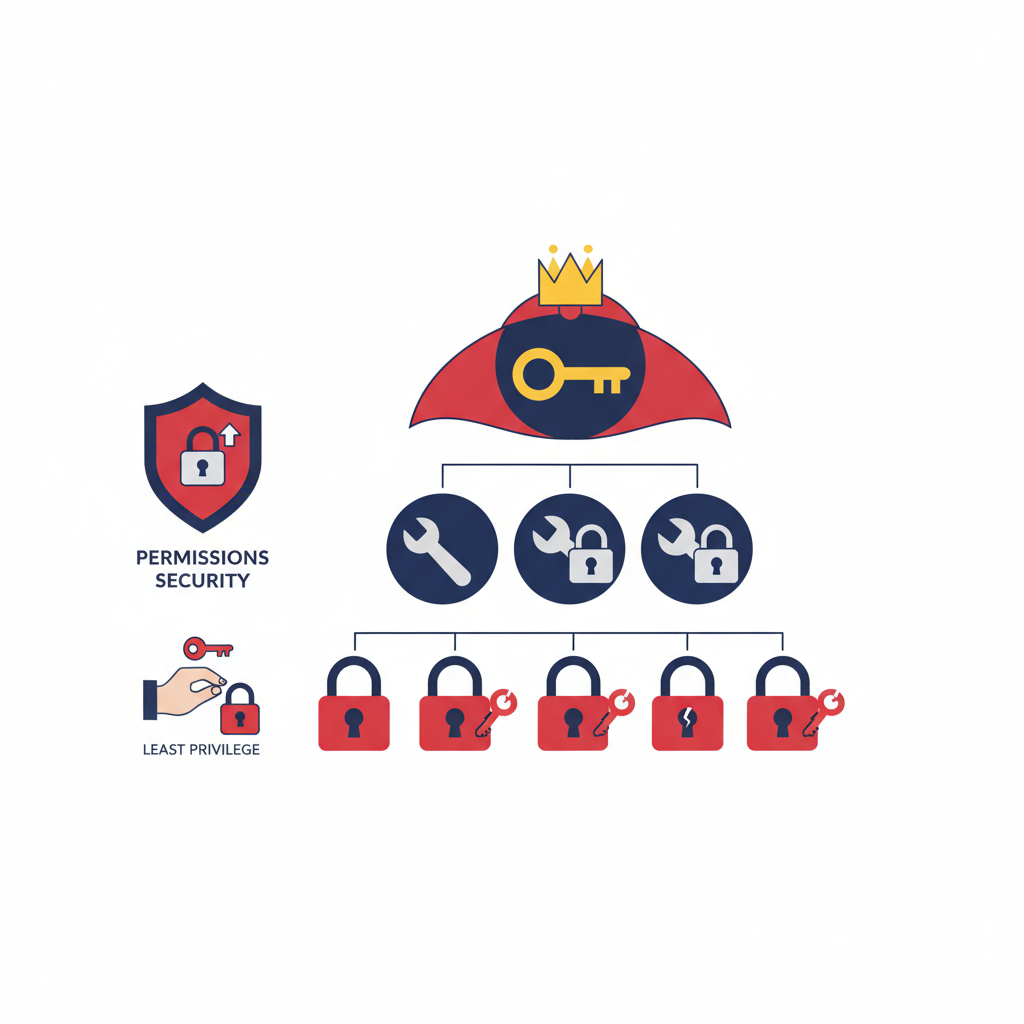
Every user account on your WordPress site is a potential door for an attacker — and the wider you open it, the more damage a compromise can do. Properly managing user roles and permissions is one of the highest-impact, lowest-effort security moves you can make. The principle is simple: give every user exactly the access they need and not one capability more.
Understand the Default Roles
WordPress ships with a built-in role hierarchy, each carrying a set of capabilities:
- Administrator — full control, including installing plugins and editing other users. The keys to the kingdom.
- Editor — manage and publish all content, but no site settings.
- Author — publish and manage only their own posts.
- Contributor — write posts but not publish them.
- Subscriber — read content and manage their own profile only.
Apply the Principle of Least Privilege
The golden rule: assign the lowest role that lets a person do their job. A blog writer is an Author, not an Administrator. A client who only reviews content is an Editor at most. Every unnecessary Administrator is an extra full-access target an attacker can phish or brute-force.
Limit the Administrator Count
Audit your users and count the Administrators. On most sites there should be one or two. Each admin account is a maximum-impact target — if one is compromised, the whole site is. Downgrade anyone who does not genuinely need full control, and remove accounts for people who have left.
Customize Capabilities When Needed
Custom Roles
When the default roles do not fit, create custom ones. A plugin like Members or User Role Editor lets you build a role with precisely the capabilities required — for example, a “Shop Manager” who handles orders but cannot touch plugins.
Granular Control
Capabilities are the individual permissions behind roles (edit_posts, manage_options, install_plugins). For programmatic control, add_role and add_cap let you define exactly what a role can do in code, kept in a custom plugin.
Harden the Admin Accounts
For the privileged accounts that remain, enforce strong protection: unique strong passwords, two-factor authentication, and a non-obvious username (never “admin”). Since these accounts can do the most harm, they deserve the most defense.
Audit Regularly
User management is not set-and-forget. Schedule a periodic review: remove stale accounts, downgrade over-provisioned users, and watch for unexpected new Administrator accounts — a classic sign of compromise. A surprise admin you did not create is a red alert.
Watch Third-Party Access
Monitor for Suspicious Activity
Roles define what users can do; monitoring tells you what they are actually doing. An activity-log plugin records logins, role changes, and content edits, giving you a trail to spot a hijacked account or an over-eager team member. Pair logging with login alerts for admin accounts so an unexpected sign-in raises a flag immediately.
Offboard Users Promptly
The most overlooked permission risk is the account nobody closed. When a contractor finishes, an employee leaves, or a plugin’s demo access lingers, that dormant account becomes an unmonitored door. Build offboarding into your process: the moment access is no longer needed, downgrade or delete the account the same day.
Developers, agencies, and support staff often get temporary admin access and never lose it. Track who has access and why, and revoke it the moment the work is done. Tightening roles and permissions costs nothing and dramatically shrinks your attack surface — security hardening with no plugin required.
Frequently Asked Questions
What role should I give a content writer?
Usually Author or Contributor. Reserve Administrator for the one or two people who genuinely manage the whole site, following least-privilege.
How do I spot a compromised account?
Watch for unexpected new Administrator accounts, unfamiliar logins, and unexplained role changes. An activity-log plugin makes these easy to catch early.