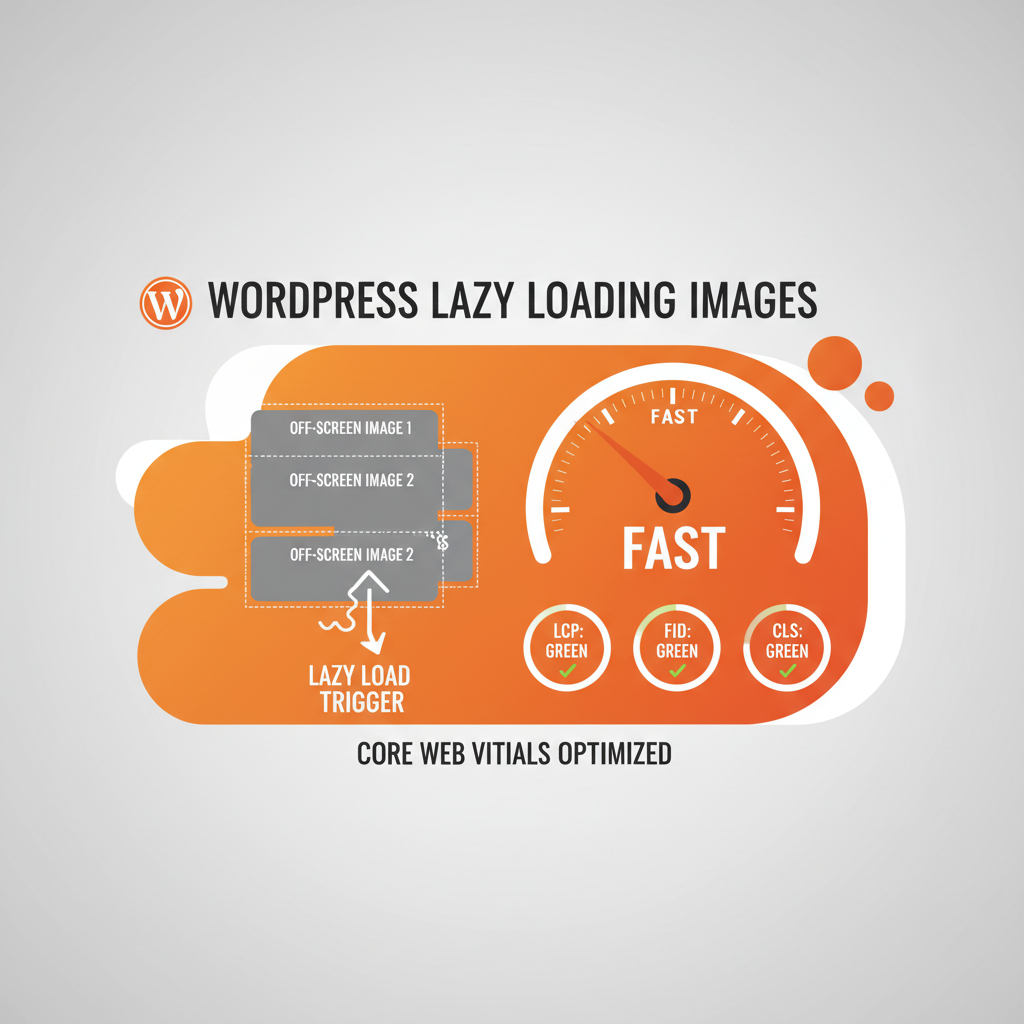
The Image Performance Problem
Images make up 50% of average website byte size. Loading all images on page load kills Core Web Vitals. Lazy loading defers off-screen images until needed — massive speed boost with zero UX cost.
Native WordPress Lazy Loading
WordPress 5.5+ includes native lazy loading. Add loading="lazy" to images:
<img src="photo.jpg" loading="lazy" width="400" height="300" alt="Description" />
Modern browsers support it natively. Old browsers ignore it and load normally.
Enable Globally in WordPress
Add to functions.php:
add_filter('wp_img_tag_add_loading_attr', '__return_true');
Now every image in your theme gets lazy loading automatically.
Plugin Solution: A3 Lazy Load
If you need more control:
Install A3 Lazy Load. It lazy-loads images, iframes, and videos. Adds blur effect while loading. Customize thresholds.
Lazy Loading Best Practices
1. Add Width & Height
Always specify dimensions to prevent layout shift (CLS):
<img src="photo.jpg" loading="lazy" width="400" height="300" />
2. Use LQIP (Low Quality Image Placeholder)
Show blurred thumbnail while loading. Better UX than gray box.
3. Exclude Hero Images
Hero image above fold should load immediately (loading=”eager” or omit attribute).
4. Optimize Image Format
Lazy loading works best with WebP + JPEG fallback. Use ImageOptimizer plugin.
Expected Impact
Page load: 50% faster (2s → 1s)
LCP: Improves by 0.5s
CLS: Reduced by preventing layout shifts
Server bandwidth: 30% reduction
Mobile performance: Significant improvement
Verify with Google PageSpeed
Run site through Google PageSpeed Insights. Look for “Defer offscreen images” — should disappear after implementing lazy loading.